> For the complete documentation index, see [llms.txt](https://gs23.gitbook.io/greyservices/llms.txt). Markdown versions of documentation pages are available by appending `.md` to page URLs; this page is available as [Markdown](https://gs23.gitbook.io/greyservices/copy-of-gs23-services/fix-garbled-language-+-chinese-translation-tools/chinese-language-ai-translators.md).
# Chinese language AI Translators
***
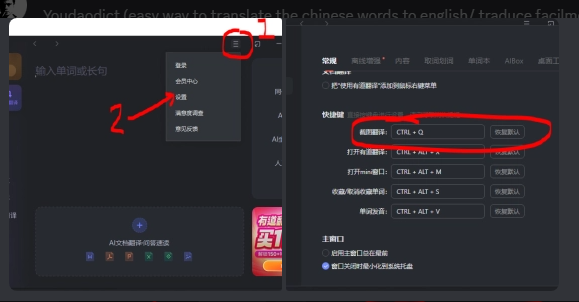
## **Youdaodict PC translator**
***
#### Youdaodict - Download here
Default short cut to use is CTRL+ALT+D if you want to change short cut follow this steps:
1: Click on number 1, then click on 3rd option marked as 2.
2: Scroll down to find the first shortcut space marked as 3, and then change it as your preference.
***
## **Yandex Online Image Translator**
***
#### Yandex Online Image Translator - Download here
Screenshot your Text you want to translate and then Paste it into the Website. Make sure to select Chinese as the translated text
1. Take a screenshot of the text you want to Translate
2. **Windows key + Print Screen** or **Windows key + Shift + S to take screenshot**
3. **Ctrl+V to paste the screenshot into the translation**
4. **Set First language as Chinese. Second Language is your choice**
***
## **Google Image Translator**
***
#### Google Image Translator - Download here
Screenshot your Text you want to translate and then Paste into the Website. Make sure to select Simplified Chinese on Google Translate
1. Take a screenshot of the text you want to Translate
2. **Windows key + Print Screen** or **Windows key + Shift + S to take screenshot**
3. **Ctrl+V to paste the screenshot into the translation**
4. Set First Language to Chinese (Simplified) Second Language is your choice